How do I use SyncFlow widgets?
Check recent sync activity from your Home Screen, then continue to sync or review history.
What you can do with SyncFlow widgets
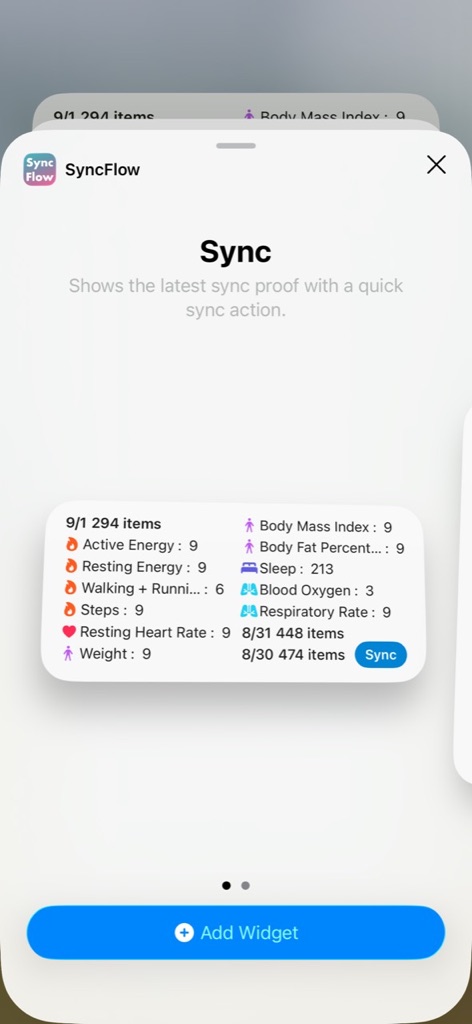
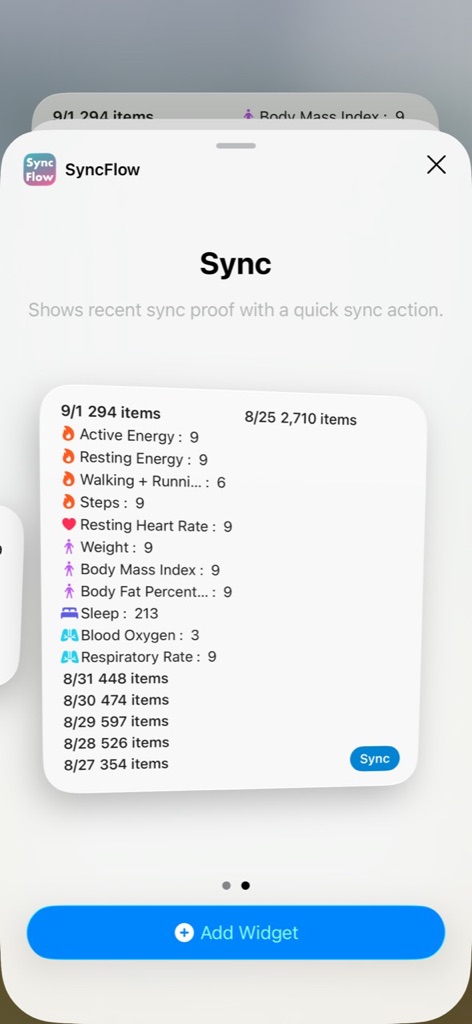
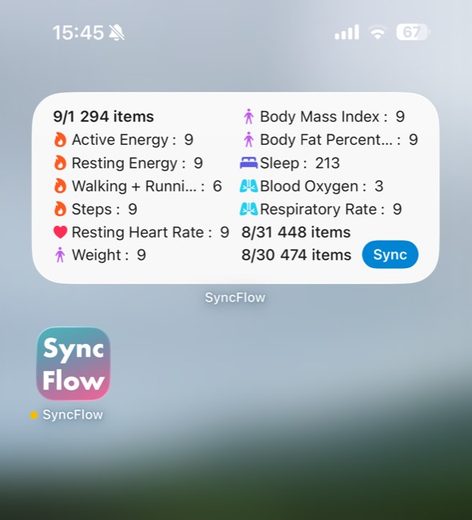
Add a SyncFlow widget to your Home Screen to check recent sync results without opening the app. You can see the sync date, how many items were written to Apple Health, and the types of data included.
Add a widget
- Touch and hold an empty area on the Home Screen.
- Tap Edit, then tap Add Widget.
- Search for SyncFlow and choose the size you want.
- Tap Add Widget, then tap Done.
Use the widget
Tap Sync to open SyncFlow and continue with the normal sync flow. Tap the widget itself to review Sync History.
What the widget shows
Both sizes show the same sync information. The Large widget can show more recent results when they are available. The amount shown depends on the widget size and your plan.
- Sync date
- Number of items written
- Counts by data type
If the information looks out of date
Open SyncFlow once and run a sync. The latest sync result will be reflected in the widget.
Sizes and examples